
Lifestyle
A guide to doing a digital spring cleaning of your devices

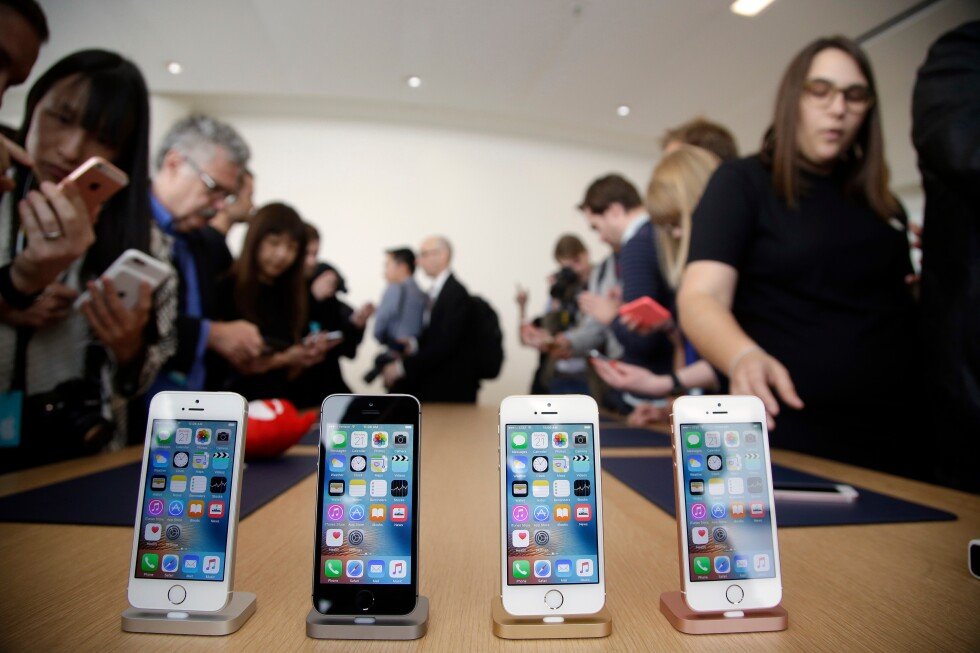
If the spring season has brought an urge to scrub your living space from top to bottom, why not clear out the digital detritus cluttering your electronic devices and online accounts at the same time?
Carrying out the digital equivalent of spring cleaning a home isn’t just an opportunity to tidy up our online lives. Eliminating dust bunnies like dormant accounts and forgotten files can help protect personal data, according to cybersecurity experts.
“Clutter is fuel for scammers. Old accounts, exposed data and forgotten apps give them more ways in,” Michael Sherwood, a product vice president at cybersecurity firm Malwarebytes, said. “Cleaning up your digital life is one of the simplest ways to shrink your attack surface in a threat landscape that’s getting smarter, faster, and more automated.”
Here is a digital spring cleaning checklist:
Free up storage space
Does it seem like your phone or laptop is always running out of storage space? All those photos, videos and other big files that we share or download add up over time.
Running out of internal storage can slow down devices or prevent them from downloading essential operating system updates. Personal gadgets usually come with built-in tools that instruct users on how to free up space.
On iPhones, go to your settings menu, then General, and then iPhone Storage, where you’ll see how much storage is left and which apps and files are eating up the most space. On Android devices, the Storage tab in settings provides a similar breakdown, with options to free up space manually or automatically.
Windows and Mac computers have similar dashboards and controls in their settings menus to identify the biggest hoggers of storage space.
Archive important files by copying them to an external drive, cloud storage or both, and then delete them from the device.
This article is part of AP’s Be Well coverage, focusing on wellness, fitness, diet and mental health. Read more Be Well.
Declutter your inbox
Your inbox is probably a mess: notifications and reminders, receipts, newsletters, tickets, bank and credit card statements and security warnings, many of them left unread. You might have a few personal missives you want to keep along with spam to purge.
Culling the clutter can help boost productivity and focus, and there are tricks to make the process less tedious and time-consuming.
Sort or filter your inbox by size to float the biggest messages — usually those with oversized file attachments — to the top for deletion. Do the same by sender or date so you can delete old and unneeded emails, or big batches from prolific senders.
Now might also be a good time to unsubscribe from any mailing lists or newsletters you don’t read anymore.
App check
Another way to free up space is to go through the apps on your phone and delete the ones you no longer use.
But don’t stop there. If any of those apps required you to sign up for an account, don’t forget to log in and delete the account as well. Otherwise, any details you provided will remain on file and vulnerable to hackers.
“Every dormant account is an open door. Scammers actively target abandoned logins because no one’s watching,” Sherwood said.
Update apps and software
Make sure the apps you’re keeping are the latest version by checking for app store updates. Same goes for the operating systems on your phone and computer. Check for the latest software updates and patches for the best performance and security.
Social media review
Cybersecurity experts advise taking the time to audit your digital footprint to see how exposed you are on Facebook, Instagram, TikTok, LinkedIn and other social media platforms.
The idea is to “review what personal info is out there and limit what apps and services can access,” Sherwood said.
You should check the privacy settings for each account and even consider deleting older posts.
“Limiting what personal information is publicly available helps to reduce the risk of falling victim to cyberattacks such as phishing and identity theft,” said Chad Thunberg, chief information security officer at cybersecurity company Yubico.
Third parties
Has a website ever suggested logging in with your Facebook or Apple account? Did your smart thermostat or doorbell camera request access to your Google account?
It’s worth checking which third-party apps and services have access to your accounts. Removing unneeded ones is another way to tighten up your online privacy.
When I checked my Google account’s “Third-party apps & services” tab, I found only three and still need them.
My Facebook settings revealed 18 connected apps and services, though all but one were expired. I removed the remaining active connection, for a photobook service I don’t remember ever using but still had access to my name and profile photo.
Get a better key
Tighten up security with review of your password practices.
Make sure you’ve got multi-factor authentication turned on for your accounts, if you haven’t done it already.
Better yet, get a passkey. It’s a “modern login standard” that offers much better security than a traditional password, Thunberg said. Passkeys are two parts of a code that only make sense when combined, kind of like a digital key and padlock. A growing number of online services and platforms now support passkeys, including Google, Amazon, Facebook and eBay.
Passkeys need to be authenticated with your fingerprint, face scan or PIN, which means “they cannot be faked, intercepted or replicated by AI-based attacks,” Thunberg said.
You’ll need a password manager to store your passkeys if you’re not already using one. Apple, Google and Samsung include their own password manager apps on phones, but there are third-party options from 1Password, BitWarden, Nordpass and many others.
Even if you haven’t started using passkeys, you should still use a password manager to keep track of all your login credentials. Best practice is to use a different password for each account so that if hackers break into one service and steal your password, it won’t work anywhere else. But it’s impossible to memorize them all.
“A password manager not only generates strong, unique passwords for each account, but also ensures users never have to remember them all,” Thunberg said.
___
Is there a tech topic that you think needs explaining? Write to us at [email protected] with your suggestions for future editions of One Tech Tip.